Product details
Floating Loss Copy EA Product Overview
- 1. EA Overview
- ----------------------------------------------------------------
- The Floating Loss Copy EA is an automated trading system (Expert Advisor) that triggers trade copying based on the floating drawdown (floating loss) of the master account.
- When the open positions on the master account reach a specified floating loss threshold, the slave account automatically copies and opens trades.
- It supports features such as automatic total position closure when profit targets are reached, and automatic synchronization of master position closures.
- Core Features:
- - Master Mode: Shares position data for the slave terminal to read
- - Slave Mode: Monitors master account floating loss and automatically copies trades once the threshold is reached
- - Floating Loss Trigger: Triggers copy trading when master account floating loss reaches the set threshold
- - Profit Close Out: Automatically closes all copied positions once total floating profit hits the target (can be triggered cyclically)
- - Two-Way Sync: Master close → Slave close, Slave close → Master close
- - Account Panel: The slave terminal allows switching between different master accounts to monitor via buttons
- - Symbol Mapping: Automatically adapts to symbol name suffixes across different brokers
- 2. Dual Licensing Instructions
- ----------------------------------------------------------------
- This EA uses a dual-licensing mechanism and requires validation through both of the following methods:
- [Local Licensing] (Configured in source code)
- - Account Whitelist: AUTH_ACCOUNTS (Supports multiple accounts, separated by vertical bars "|")
- - Expiration Date: AUTH_EXPIRE (Format "YYYY.MM.DD HH:MM")
- - Automatic renewal reminder 7 days before expiration
- [DLL Network Licensing] (Remote server validation)
- - Uses AuthDLL.dll for network authentication
- - Supports account binding and machine hardware code binding
- - Server-side expiration management to prevent local system time tampering
- - Supports announcement push notifications
3. Required Files
----------------------------------------------------------------
- MT4 Version:
- Floating Loss Copier EA.ex4 → MQL4\Experts\
- AuthDLL.dll (32-bit) → MQL4\Libraries\
- How to find the folder path:
- Open MT4/MT5 → Top Menu "File" → "Open Data Folder"
- Navigate to the MQL4/MQL5 folder, locate the corresponding subfolder, and place the files inside.
- 4. Essential MT4/MT5 Settings
- ----------------------------------------------------------------
- 1. Click Top Menu "Tools" → "Options" → "Expert Advisors" tab
- 2. Check the following options:
- ☑ Allow Algo Trading
- ☑ Allow DLL imports
3. Click "OK" to save the settings.
- Note:
- - Both options above must be checked, otherwise the EA cannot pass license verification.
- - An active internet connection is required during the first run for DLL license verification.
- - If prompted with "DLL imports are not allowed", please reload the EA and check the respective option.
- 5. Loading the EA (Master / Provider Side)
- ----------------------------------------------------------------
- 1. On the Master account MT4/MT5 platform, open any chart
2. In the left "Navigator" panel → "Expert Advisors"
Find "Floating Loss Copier EA" and drag it onto the chart
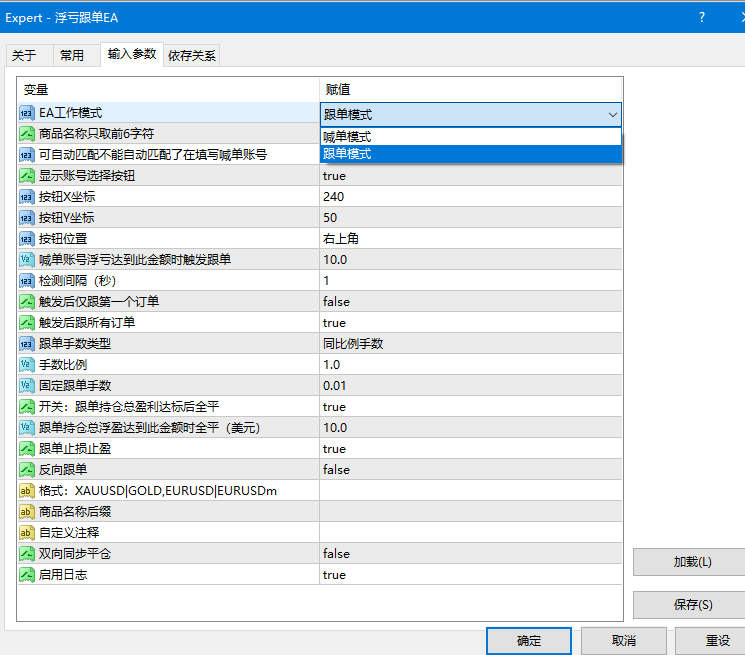
3. In the pop-up parameter settings window, configure the following settings:
EA Work Mode → Select "Master Mode"
Trim Symbol to First 6 Chars → Recommended default: true
(Using the first 6 characters helps cross-platform symbol matching)
Enable Logging → Recommended to turn ON for troubleshooting
- 4. Switch to the "Common" tab and confirm the following are checked:
- ☑ Allow Algo Trading
- ☑ Allow DLL imports
5. Click "OK". If "Floating Loss Copier EA - Master Mode" appears in the top-left corner of the chart, it is running properly.
- Information displayed on top-left of the chart:
- - Account Number
- - Current Open Positions Count
- - Current Floating Loss Amount
- 6. Loading the EA (Slave / Copier Side)
- ----------------------------------------------------------------
- 1. On the Slave account MT4/MT5 platform, open any chart
2. Find "Floating Loss Copier EA" in the left "Navigator" panel and drag it onto the chart
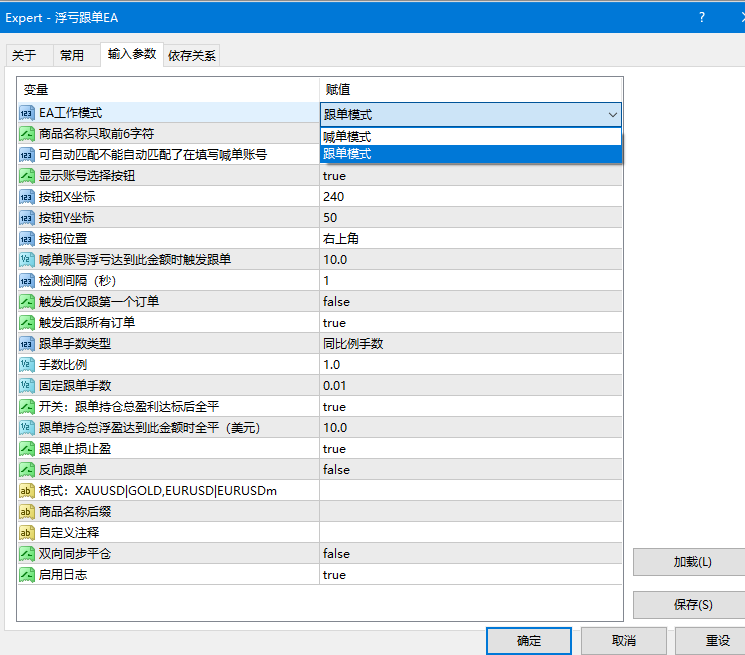
3. In the pop-up parameter settings window, configure the following settings:
EA Work Mode → Select "Slave Mode"
Master Account Number → Enter the Master Account number
(Enter 0 to auto-scan; Master EA must be running on the same computer)
- [Floating Loss Trigger Settings]
- Trigger Floating Loss Amount → Triggers copy trading when master floating loss reaches this value (Default: 100 USD)
- Floating Loss Check Interval (Sec) → Detection interval in seconds (Default: 5s)
- Copy First Order Only → true to copy only the first position / false to copy all positions
- Copy All Orders → true to copy all positions once triggered
- [Copy Lot Size Settings]
- Copy Lot Type → Proportional Lot / Fixed Lot Mode
- Lot Multiplier → Multiplier ratio for proportional lot (Default: 1.0)
- Fixed Copy Lot Size → Position size under Fixed Lot mode (Default: 0.01)
- [Profit Close Out Settings]
- Enable Profit Close Out → true to Enable / false to Disable
- Profit Close Amount → Closes all copied positions when total floating profit hits this amount (Default: 10 USD)
- (Once closed, positions reset and can be triggered cyclically again)
- [Other Settings]
- Copy SL/TP → true to copy master Stop Loss & Take Profit / false to omit SL/TP
- Reverse Copying → true to enable reverse copying (Buy → Sell, Sell → Buy)
- Symbol Mapping → Format: XAUUSD|GOLD,EURUSD|EURUSDm
- (Custom symbol name mapping, separated by commas for multiple pairs)
- Symbol Suffix → e.g., "m", ".pro", etc., automatically appends suffix to match symbols
- Two-Way Sync Close → true for two-way sync (manual close on slave → closes master position as well)
- Enable Logging → Recommended to turn ON for easy troubleshooting
- 4. Switch to the "Common" tab and confirm the following are checked:
- ☑ Allow Algo Trading
- ☑ Allow DLL imports
5. Click "OK". Account selection buttons will appear in the top-right corner of the chart.
- Information displayed on top-left of the chart:
- - Monitored Master Account
- - Master Current Floating Loss / Trigger Threshold
- - Current Status (Waiting for trigger / Copying triggered / Closed by profit target)
- Top-right chart buttons:
- - Click to expand account list and select master account to monitor
- - Green button = Currently monitored account
- - Blue button = Other available accounts
- 7. Workflow Description
- ----------------------------------------------------------------
- 1. Master EA continuously shares position data
2. Slave EA reads master data every second to check if floating loss reaches the set threshold
- 3. Triggering copy trading on floating loss:
- - First time floating loss meets threshold → Copying triggered; opens trades mirroring all current master positions
- - Continuous monitoring after trigger → Newly opened master orders are copied automatically
4. Master position closed → Slave automatically synchronizes and closes position
- 5. Profit target reached → Automatically closes all copied positions
- - Once positions are closed, active positions reset to zero and wait for the next trigger
- - Creates a cycle of "Trigger → Copy → Profit → Close → Re-trigger"
6. Two-Way Sync Close (Optional):
- Manual close on slave terminal → Master side automatically synchronizes and closes trade
- 8. Important Notes
- ----------------------------------------------------------------
- 1. The Master and Slave terminals must run on the same computer/VPS
2. The Master terminal EA must be started first so the Slave terminal can read its data
3. Floating loss is represented as a negative value, but the threshold parameter is entered as a positive number.
Example: Trigger Floating Loss Amount = 100 means copy trading triggers when master floating loss reaches -$100 USD.
- 4. Symbol Mapping Instructions:
- - If Master symbol is "XAUUSD" and Slave symbol is "GOLD"
- - Set Symbol Mapping to: XAUUSD|GOLD
- - Auto Mapping: The system will attempt to match symbols with suffixes (e.g., EURUSD → EURUSDm)
- 5. Symbol Suffix Instructions:
- - If all symbols on the Slave side have the suffix ".pro"
- - Set Symbol Suffix to ".pro"
- - The system automatically appends the suffix for matching
- 6. Profit Close Out Cyclic Mode:
- - When enabled: Copy → Target profit hit → Close all → Positions cleared → Reset → Re-trigger
- - When disabled: Resets only after floating loss recovers and no positions remain open
- 7. Viewing Logs:
- - Open MT4/MT5 bottom "Terminal / Toolbox" → "Experts" tab
- - Log prefix definitions:
- [Master] = Master mode logs
- [Slave] = Slave mode logs
- [Drawdown Trigger] = Floating loss trigger events
- [Open Trade] = Slave trade opening logs
- [Slave Close] = Synchronized position close logs
- [Profit Close] = Target profit close logs
- [Auth] = License verification logs
- 9. Frequently Asked Questions (FAQ)
- ----------------------------------------------------------------
- Q: Slave terminal displays "Master account not connected"
- A: Ensure the Master EA is attached and running, then wait a few seconds for auto-connection.
Q: Slave terminal does not trigger copy trading
A: Check whether the Master floating loss has reached the trigger threshold (note that floating loss is negative).
Q: Slave order placement fails for symbol
A: Check whether symbol names match; configure Symbol Mapping or Symbol Suffix accordingly.
Q: License validation fails
A: Check internet connection, ensure AuthDLL.dll is placed in the correct directory, and reload the EA.
Q: No account selection buttons on the chart
A: Ensure the parameter "Show Account Selection Buttons" is set to true.
- ================================================================
- If you have any questions, please contact Customer Support
- ================================================================
Suitable Scenarios
This product is suitable for traders using MT4/MT5 resources who require trade copying capabilities for strategy testing, chart analysis, account management, or automated trading assistance. It is strongly recommended to test settings and compatibility in a demo account environment before live deployment.