Product details
MT4-MT5 Cross-Platform Copy & Close EA Product Overview
MT4-MT5 Copy & Close.ex4 → For MT4 Platform (2-in-1 Provider + Copier)
MT4-MT5 Copy & Close.ex5 → For MT5 Platform (2-in-1 Provider + Copier)
- The two EAs support cross-platform copy trading:
- - MT4 Provider → MT5 Copier
- - MT5 Provider → MT4 Copier
- - MT4 Provider → MT4 Copier
- - MT5 Provider → MT5 Copier
- ========================================
- 2. Mode Selection
- ========================================
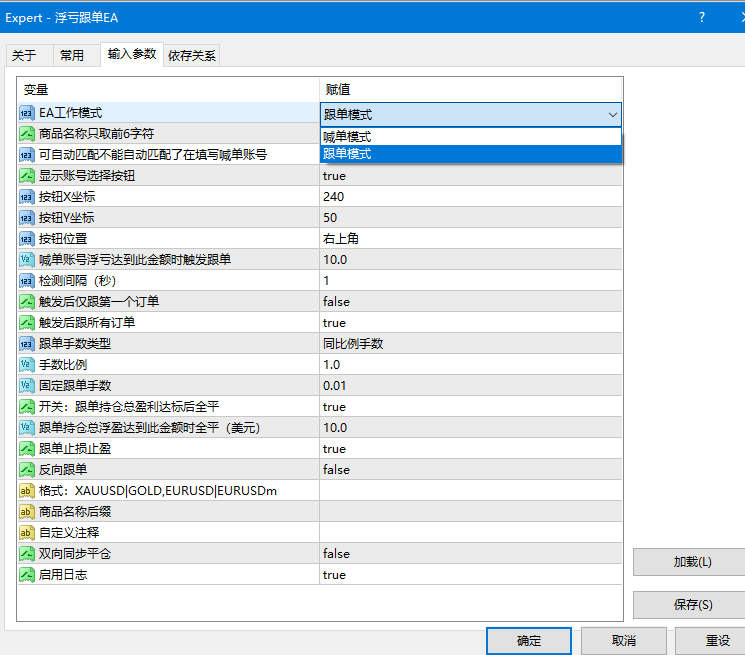
- Parameter: EA Work Mode
- Provider Mode = Act as signal provider, send signals
- Copier Mode = Read signals, copy trades to this account
- Note:
- - Attach Provider Mode to the signal provider account
- - Attach Copier Mode to the copier account
- - Only one EA can be attached per chart
- ========================================
- 3. Signal Provider Mode Parameter Settings
- ========================================
- Parameter Name Description
- ------------------------------------------------------------
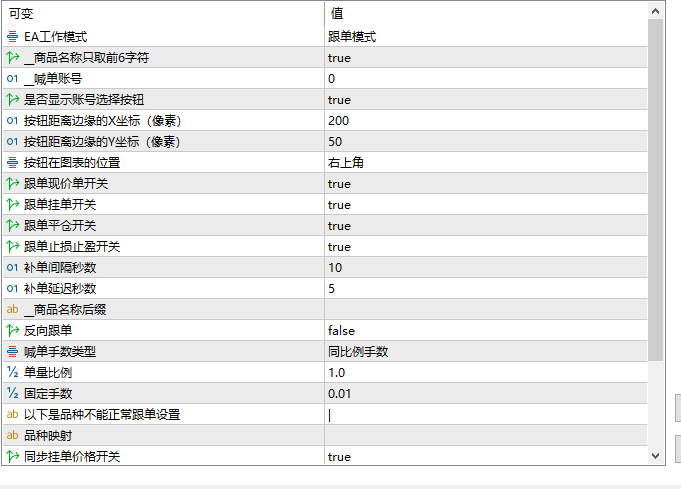
- __Use First 6 Symbol Chars true = Write first 6 characters only (e.g., XAUUSD)
- false = Write full symbol name (e.g., XAUUSDm)
- Recommendation: true (Better compatibility)
- ========================================
- 4. Signal Copier Mode Parameter Settings
- ========================================
- [Account Settings]
- Parameter Name Description
- ------------------------------------------------------------
- __Signal Provider Account Enter the provider account number
- Set to 0 = Automatically detect valid provider account (Recommended)
- Show Account Switch Button true = Display account switch button on chart
- Button Position Top-Left / Top-Right / Bottom-Left / Bottom-Right
- Button X-Coordinate Horizontal pixel distance from edge
- Button Y-Coordinate Vertical pixel distance from edge
- [Copy Trading Switches]
- Parameter Name Description
- ------------------------------------------------------------
- Copy Market Orders true = Copy market buy/sell orders
- Copy Pending Orders true = Copy limit/stop pending orders
- Copy Order Close true = Copy trade closures from provider
- Copy SL/TP true = Synchronize SL and TP prices from provider
- Two-Way Sync Close Switch true = Closing manually on Copier will also close the Provider's trade
- [Lot Size Settings]
- Parameter Name Description
- ------------------------------------------------------------
- Lot Sizing Type Proportional Lots = Copy lot size proportionally
- Fixed Custom Lots = Use a fixed lot size
- Lot Multiplier Ratio Multiplier for proportional sizing (1 = 1:1 ratio, 2 = Double)
- Fixed Lot Size Fixed lot value when using custom lots (e.g., 0.01)
- [Symbol Settings]
- Parameter Name Description
- ------------------------------------------------------------
- __Symbol Suffix Symbol suffix on the Copier platform
- Example: Provider uses XAUUSD, Copier platform uses XAUUSDm
- Enter: m
- Symbol Mapping Symbol name mapping rules
- Format: SourceSymbol|TargetSymbol
- Example: XAUUSD|GOLD_
- Separate multiple pairs with |: XAUUSD|GOLD_|EURUSD|EURUSDm
- Reverse Copying true = Provider buys, Copier sells (Reverse operation)
- [Other Settings]
- Parameter Name Description
- ------------------------------------------------------------
- Magic Number Order identifier code; must set different values for multiple copiers
- Custom Comment Comment text for copied orders (Leave blank for no comment)
- Missing Order Check Interval (s) Time interval in seconds to check for missed orders
- Missing Order Delay (s) Wait time in seconds before placing missed orders
- Sync Pending Price Switch true = Real-time sync of provider pending order price changes (MT5 version)
- Enable Log Output true = Print detailed log output (for debugging)
- ========================================
- 5. How to Use the Account Switch Button
- ========================================
In Copier Mode, an account selection button is displayed on the chart:
- [Collapsed State]
- ┌──────────────────┐
- │ ▼ Account: 38016863 │ ← Click to expand account list
- └──────────────────┘
- [Expanded State]
- ┌──────────────────┐
- │ ▼ Account: 38016863 │ ← Click to collapse
- ├──────────────────┤
- │ ● 38016863 │ ← Current Account (Green)
- ├──────────────────┤
- │ ○ 07197 │ ← Available Account (Blue)
- ├──────────────────┤
- │ ○ 4555 │ ← Available Account (Blue)
- └──────────────────┘
- Button Color Legend:
- Green = Connected to a valid Provider account
- Orange = No account selected
- Grey = No available accounts (Provider EA not running)
- Note:
- - The list only shows accounts with normal signals (data updated within 60 seconds)
- - Account list automatically refreshes every 10 seconds
- - When Provider EA stops running, that account automatically disappears from the list
- ========================================
- 6. Two-Way Synchronized Closing
- ========================================
When "Two-Way Sync Close Switch = true" is enabled:
Direction 1 (Normal Copying):
Provider account closes order → Copier account automatically closes trade
Direction 2 (Reverse Synchronization):
Copier account closes trade manually → Provider account automatically closes matching trade
- Use Case:
- When the Copier account needs to take profit or stop loss early,
- the Provider account will perform the same close order action simultaneously.
- ========================================
- 7. On-Chart Status Indicator Guide
- ========================================
The current operational status is displayed in the top-left corner of the chart:
- Message Color Meaning
- ------------------------------------------------------------
- Copier running normally... Blue Copier operating normally
- Provider running normally... Blue Provider operating normally
- Not connected to Provider Red Provider signal not found
- Provider data not updated Red Provider signal not updated for >5 seconds
- Incomplete Provider data sent Red Provider signal format error
- Provider EA version mismatch Red Provider EA version mismatch
- Troubleshooting:
- Red Indicator → Check if Provider EA is running normally
- Blue Indicator → Normal status; no action required
- ========================================
- 8. Common Use Cases
- ========================================
- [Scenario 1: MT4 Provider → MT5 Copier (Cross-Platform)]
- [Scenario 2: MT5 Provider → MT4 Copier (Cross-Platform)]
- 1. MT5 Account: Attach MT4-MT5-Cross-Copy-Close.ex5, set to Provider Mode
- 2. MT4 Account: Attach MT4-MT5-Cross-Copy-Close.ex4, set to Copier Mode
- 3. MT4 Copier parameter: __Signal Provider Account = 0 (Auto Detect)
- [Scenario 3: 1 Provider to Multiple Copiers]
- 1. Provider Account: Attach 1 EA, set to Provider Mode
- 2. Copier Account 1: Attach EA, Magic Number = 1
- 3. Copier Account 2: Attach EA, Magic Number = 2
- 4. Copier Account 3: Attach EA, Magic Number = 3
- Note: Magic Numbers across multiple Copier EAs must be unique
- [Scenario 4: Cross-Platform Copying with Different Symbol Names]
- Example: Provider symbol is XAUUSD, Copier symbol is XAUUSDm
- Configuration method:
- __Symbol Suffix = m
- OR
- Symbol Mapping = XAUUSD|XAUUSDm
- [Scenario 5: Manual Close Synchronization]
- 1. Set Two-Way Sync Close Switch = true
- 2. Manually close a trade on the Copier account
- 3. Corresponding order on Provider account automatically closes
- ========================================
- 9. Important Notes
- ========================================
1. Both Provider EA and Copier EA must run simultaneously.
2. Both EAs must run on the same computer / VPS.
(Signals are shared locally between MT4 and MT5 instances.)
3. Magic Number cannot be set to 444 or -444.
4. The chart to which the Copier EA is attached does not affect trade execution.
(The Copier is not restricted to the chart symbol and will replicate all symbols from the Provider.)
5. It is recommended to set "__Use First 6 Symbol Chars" to true on the Provider EA.
This makes it easier for the Copier EA to match symbol names.
6. If symbol names on the Copier account have suffixes (e.g., m, .),
you must configure "__Symbol Suffix" in the Copier EA.
7. The account selection button is displayed only in Copier Mode.
8. The EA automatically re-initializes whenever parameter settings are modified.
- ========================================
- 10. How to View Logs
- ========================================
- View EA operation logs in MT4/MT5:
- Menu → View → Terminal / Toolbox → Journal (MT4)
- Menu → View → Toolbox → Experts (MT5)
- Key Log Labels Description:
- [Initialization] Initialization info on EA startup
- [Account Switch] Account switch successful
- [Auto Switch] Auto switched to valid account
- [Order Open] Copied trade opened successfully
- [Copy Close] Copied order closed following Provider
- [External Close] Detected manual trade closure on Copier account
- [Close Log] Two-way synchronized close processing
- [Re-order] Missed trade filled successfully
- [Force Sync] Orphaned orders detected and processed
Use Cases & Applications
This product is ideal for traders looking to mirror orders between MT4 and MT5 platforms for strategy testing, chart analysis, multi-account management, or automated trading support. Before live deployment, it is strongly recommended to test settings and compatibility in a demo account environment first.